
ddc-input-select: switching monitor inputs without reaching behind the monitor
Two single-file native apps put a Dell U5226KW’s five inputs, brightness, contrast, volume, and power in the Windows tray and the macOS menu bar over DDC/CI.


For years my desk ran on a 49-inch LG TV that thought it was a monitor. It was 4K, it was cheap, it was enormous, and it had exactly one virtue as a productivity device: it never asked anything of me. Then a Dell UltraSharp U5226KW arrived: 52 inches of gently curved glass, 6144 by 2560 pixels at 120 Hz, two 9-watt speakers, and five video inputs. Suddenly my desk had more computers attached to one screen than some offices I have worked in. A Mac lives on the Thunderbolt port. A Windows tower lives on DisplayPort. Spares come and go on the other three.
Five inputs means switching inputs, and switching inputs means the joystick. If you have never used a modern monitor: the entire on-screen menu system hangs off one rubber nub hidden behind the lower-right corner of the bezel, placed precisely where no human arm naturally bends. Brightness lives three menu levels deep. Volume lives somewhere else. Power is a different button entirely. The U5226KW is a wonderful display operated through a hole in space directly behind it.
I am too lazy for that, and this is a story about how far laziness will scale. The project, ddc-input-select, started as a little bash picker for my Linux box, then escalated the way side projects do: within the week there was a native Windows tray app and a native macOS menu bar app, with Claude Fable 5 writing the code, ChatGPT drawing the icons, and me supplying the laziness, the monitor, and the opinions.
Dell ships an app for this. It is a lot of app.
To be fair to Dell, they ship software for this monitor, and it does many things. As listed on Dell's own support site in June 2026: Dell Display Manager 2.3.2 for Windows is a 71.83 MB installer, and its newer sibling, Dell Display and Peripheral Manager for Windows 2.2.2, is a 406 MB one. The macOS edition, Dell Display and Peripheral Manager for macOS, is a comparatively svelte 16.45 MB. These are real products with webcam firmware to manage and conference rooms to please, and I am sure every megabyte has a story. I just did not need any of them for switching inputs.
The replacement on this desk is one C file that compiles to a 0.9 MB executable, and one Swift file that compiles to a 223 KB binary. No installer, no service, no updater, no account. The entire Windows app, including its icons and an embedded second copy of itself (more on that shortly), is smaller than most apps' splash screens. And because both apps speak to the monitor directly, they can do things like graying out the inputs that have no cable plugged in, a thing I could not find anywhere in Dell's official tooling.
DDC/CI, the protocol hiding in your video cable
Every video cable on your desk carries a slow, ancient side channel that speaks I2C, the same two-wire protocol that reads the temperature sensor on a hobby board. Monitors use it to announce their resolution (that part is EDID), and almost all of them also accept commands over it. That part is DDC/CI, and the command vocabulary is VESA's MCCS: read a control, write a control, each control identified by a one-byte VCP code.
The apps use six standard codes and one mystery guest:
| Code | MCCS name | What the apps do with it |
|---|---|---|
| 0x60 | Input Select | Read the active input, switch inputs. |
| 0x10 | Luminance | Brightness, 0 to 100. |
| 0x12 | Contrast | Contrast, 0 to 100. |
| 0x62 | Audio: Speaker Volume | Volume, 0 to 100. On this monitor, 128 + level means muted at that level. |
| 0x8D | Audio Mute / Screen Blank | The mute toggle itself: 1 mutes, 2 unmutes. |
| 0xD6 | Power Mode | 1 is on, 4 is soft off. This monitor answers DDC while the panel sleeps. |
| 0xE7 | (vendor specific) | The mystery guest: a per-input cable-connection bitmask, found nowhere in the manual. |
Two details in the fine print turn out to carry the whole project. First, a VCP reply contains both a current value and a maximum value, and nothing stops a vendor from hiding extra payload in the half nobody reads. Second, this monitor keeps answering DDC even when the panel is off, which is what makes software power buttons possible at all.
The Windows app: one C file, two personalities
The Windows app is about 2,200 lines of C11 and raw Win32. No framework, no runtime, no dependencies beyond what every Windows install already has: dxva2.dll for the physical monitor handles, user32 for the menus, shell32 for the tray icon, advapi32 to read the theme from the registry. It compiles with MinGW from the same Makefile that installs the Linux picker.
Its best trick is stolen from Visual Studio. For decades, devenv has shipped as two binaries: devenv.exe, the GUI, and devenv.com, a console twin, and because PATHEXT ranks .COM ahead of .EXE, typing devenv in a shell gets you the one that behaves like a console program. This app does the same with one file: the GUI tool.exe (the Windows binary really is just called tool) carries a signed console build of itself as an embedded resource and extracts tool.com next to itself on first launch. Double-click and you get a silent tray app. Type tool --brightness 40 in PowerShell and the shell waits, prints, and exits like a proper CLI, because it quietly ran the twin. One distributable, two subsystems, zero flashing console windows.
The rest of the file is the kind of bookkeeping Windows makes you earn. Per-monitor DPI awareness v2, because without it the tray menu materializes in the wrong place on any scaled display. Tray icons in two flavors, swapped live when the taskbar theme changes, because the taskbar and the apps each have their own light/dark registry key and they disagree more often than you would hope. Dark context menus via uxtheme.dll ordinals 135 and 136, which is the polite way of saying an undocumented API that has been stable since 2018, called fail-soft so the worst case is a light menu, and skipped entirely under high contrast where forcing dark would fight accessibility. And a global hotkey, Win+backtick, registered with MOD_NOREPEAT and surrendered gracefully if something else owns it. If you run Windows Terminal with quake mode, that something is probably you; the app notices, keeps working from the tray, and notes the loss in its tooltip instead of fighting over the key.
The macOS app: one Swift file, zero permission prompts
The macOS side is about 1,500 lines of Swift and AppKit, a menu bar app with no Dock icon. Apple Silicon has no public API for DDC on external displays, so the app bridges to the private IOAVService I2C functions for its reads and writes. Private API, used carefully: every reply is checksum-verified before anything is displayed, and a corrupt frame is retried once and otherwise discarded, never shown.
The fun engineering is in the hotkey. The menu opens on Cmd+backtick from anywhere, registered through the Carbon hotkey API, which dates back to the turn of the century and is still the only way to get a global hotkey on macOS without triggering a single permission dialog. But Carbon hotkeys do not fire while a menu is tracking, so "press it again to close the menu" cannot work the obvious way. The app's solution: the moment the menu opens, it unregisters its own hotkey, and a hidden menu item with key equivalent Cmd+backtick catches the re-press inside the menu's own event loop.
The hidden item's key equivalent is even rebuilt on every open from the physical key position, so the toggle keeps working when I switch to a German layout and the backtick wanders off. When the menu closes, the hotkey re-registers. You cannot see any of this; you just press the same chord to open and close, like it was always supposed to work that way. The honest fine print: Cmd+backtick is also the system's "Move focus to next window" shortcut, and a registered global hotkey wins, so this app assumes you cycle windows some other way or are willing to rebind one of them.
Two more native gaps got filled in-process. AppKit menus do not wrap when you arrow past the last item, and Escape slams the whole menu tree shut instead of stepping out one level. The app swaps the implementations of three private menu-tracking handlers inside its own process, deferring to the originals wherever it does not act, so arrows wrap and Escape walks out of a submenu before it dismisses the menu, the way Windows has always done it. No event tap, no Accessibility approval, no Input Monitoring: the app never sees a single keystroke that was not aimed at its own menu, and macOS never has a reason to show a consent dialog. On a platform where most menu bar utilities open with a tour of System Settings, "zero prompts" is a feature with its own line in the spec.
Same brain, different bodies
Side by side, the two apps are the same product. The menu layout is identical: five inputs at the top, the active one checked, the unplugged ones grayed; Brightness, Contrast, and Volume with their live values in the label; a checkable On item; Exit at the bottom. The same tab-separated config file names the inputs. The same CLI flags work in both shells (macOS skips only --caps). The same wake loop, the same prefetch, the same fail-open philosophy: when a read fails, controls say "unavailable" and inputs stay clickable, because a monitor that answers strangely is exactly the monitor you most want to send commands to.
The differences are all platform physics. Windows fans the menu snapshot out over five threads; macOS pushes every transaction through one strict serial queue because two concurrent I2C reads on this hardware corrupt each other, a fact discovered the usual way. Windows had to build its own dark mode, its own focus restoration on menu close, and its own keyboard submenu peek out of timers and undocumented messages; AppKit gives all three away for free. In exchange, macOS needed private-selector surgery for arrow wrapping that Win32 menus have done natively since the nineties. Each platform got the other's homework as its own weekend assignment.
| Windows | macOS | |
|---|---|---|
| Source | One C11 file, about 2,200 lines, raw Win32 | One Swift file, about 1,500 lines, AppKit |
| Binary | 0.9 MB exe, console twin included | 223 KB arm64 binary in a standard bundle |
| DDC transport | dxva2 physical-monitor API | Private IOAVService I2C, checksum-verified |
| Global hotkey | Win+` via RegisterHotKey | Cmd+` via Carbon, no permission prompts |
| Hotkey re-press closes | EndMenu from the hotkey handler | Hidden menu item catches the chord in-menu |
| Concurrency | Five snapshot threads, serialized by the bus | One strict serial queue by design |
| Dark mode | Hand-built: registry keys plus uxtheme ordinals | Free: template icon, native menu |
| Arrow-key wrap | Native Win32 behavior | In-process override of private handlers |
| Focus restore on close | Reconstructed by hand | Free: status menus never steal focus |
| Menu snapshot, before and after | 312 ms to 260 ms | 411 ms to 65 ms |
Register 0xE7, the bitmask the manual never mentions
Here is the feature I am proudest of, and I did not build it; I found it. No standard DDC facility can tell you which input ports have a live cable. Code 0x60 reports the single active input. The capabilities string lists the inputs the monitor supports, not the ones connected. Every OS display API ends at your own cable. Dell Display Manager's command line can read and even switch the active input, but as far as I can tell, nothing in Dell's tooling reports which of the other ports have live cables.
But the U5226KW knows, and it tells anyone who asks an undocumented question. Vendor code 0xE7 returns a value whose maximum field smuggles a bitmask in its low byte: one bit per input, set when a cable with a live source is plugged in. Read 0x0203 and Thunderbolt plus DisplayPort 1 are connected; unplug the Mac and it drops to 0x0202 in real time. The read is global (every host sees the same answer), passive (nothing flickers), and free. That is the entire mechanism behind the grayed-out menu items, and I will be honest about the confidence levels, because they are part of the story: bit 0 was confirmed by ceremonial unplugging and replugging, bit 1 is strongly indicated, and bits 2 through 4 are inferred from input ordering because I ran out of cables before I ran out of curiosity. On this unit, with this firmware. Vendor registers come with vendor warranties, which is to say none.
Waking a monitor that plays dead
The power feature sounds trivial: write 1 to code 0xD6 to wake, 4 to sleep. Then the monitor enters deep sleep and the trivial version dies. The controller keeps acknowledging writes while doing nothing, then briefly stops answering reads, and early versions of "turn on" reported success to a black screen. The apps now refuse to trust any write: wake is a loop of write, wait half a second, read 0xD6 back, up to six times, and only a verified read of "on" counts.
Then comes the better bug. A freshly woken monitor runs its own input arbitration and frequently lands on whichever port shouts first, which on this desk means pressing the wake hotkey from Windows and watching the monitor greet you with the Mac. The fix hides in plain sight: the 0x60 reply's high byte names the port the asking host is connected to. The monitor tells you which door you knocked on. So after every verified hotkey wake, the app re-asserts its own host's input, and the screen you wake up to is the computer you woke it from. (The menu's On toggle deliberately wakes without touching the input: restoring power is not permission to steal the screen.) The deepest sleep state over Thunderbolt is still an open research question on the Mac side; the monitor may tear the link down so thoroughly that whether software can wake it at all remains to be measured.
The milliseconds nobody asked me to shave
Opening the menu takes five DDC reads: input, brightness, contrast, volume, connection mask. It used to take six; the dedicated mute read was dropped once it turned out the volume register already encodes mute by adding 128 to the level, so "Volume: 4 (muted)" costs nothing extra. On Windows that took the snapshot from 312 ms to 260 ms, and the arithmetic is satisfyingly dumb: the bus serializes everything no matter how many threads you throw at it, each read costs about 52 ms, and six times 52 is 312 while five times 52 is 260. The parallelism was always theater; deleting one read was the only real optimization available.
macOS went from 411 ms to 65 ms, which is a real number from a real stopwatch and my favorite measurement of the project. The service handle is now cached between transactions instead of rebuilt, and a fixed 50 ms settle delay after each write was cut to 5 ms, protected by the checksum check: across roughly 7,600 verified reads the replies stayed bit-identical even with the settle dialed all the way down to zero, so 5 ms sits right at the measured readiness point, with the checksum check and a single 50 ms retry as the backstop, while deleting 45 ms from every single read. Multiply by five reads and the menu stops feeling like a network request.
The last trick makes the remaining cost invisible: both apps start reading the moment the mouse touches the tray icon, before any click. If your cursor dwells on the icon for longer than a snapshot takes, the menu opens on data that is already there, so a mouse open is roughly zero milliseconds of perceived DDC latency. Hotkey opens skip the cache and read fresh, on the theory that a keyboard user has already decided and deserves the truth.
Fit and finish
Everything above is plumbing. What makes the apps pleasant is a pile of small decisions, and since the entire point of this post is attention to detail, here is the pile.
Switching inputs is two keystrokes. The hotkey opens the menu with the first connected, non-active input already highlighted, so hotkey then Enter flips to the other machine. If the panel is asleep, the highlight lands on this host's own input instead, so the same two keystrokes mean "wake up and look at me". The control submenus play the same game: open Brightness while it sits at 75 and the 75 preset is pre-highlighted, so your arrow keys start from where reality is. Mute is the bare letter m on macOS, no modifier, because the menu is already open and knows what you mean. Escape closes one level at a time on both platforms. Arrow keys wrap on both. Pressing the hotkey again closes everything. And when the menu closes, focus returns to whatever app had it before, a thing AppKit does for free and the Windows app reconstructs by hand, capturing the foreground window before the menu steals it and handing focus back after, because nothing breaks flow like a vanished cursor.
The power item is checkable, and its checkmark renders instantly from the last known state instead of blocking the menu on a read of a possibly-sleeping monitor. A background read then corrects the checkbox in place while the menu is open. You can watch it happen if the monitor was off: the menu appears immediately, and a beat later the checkmark quietly agrees with reality.
The icons
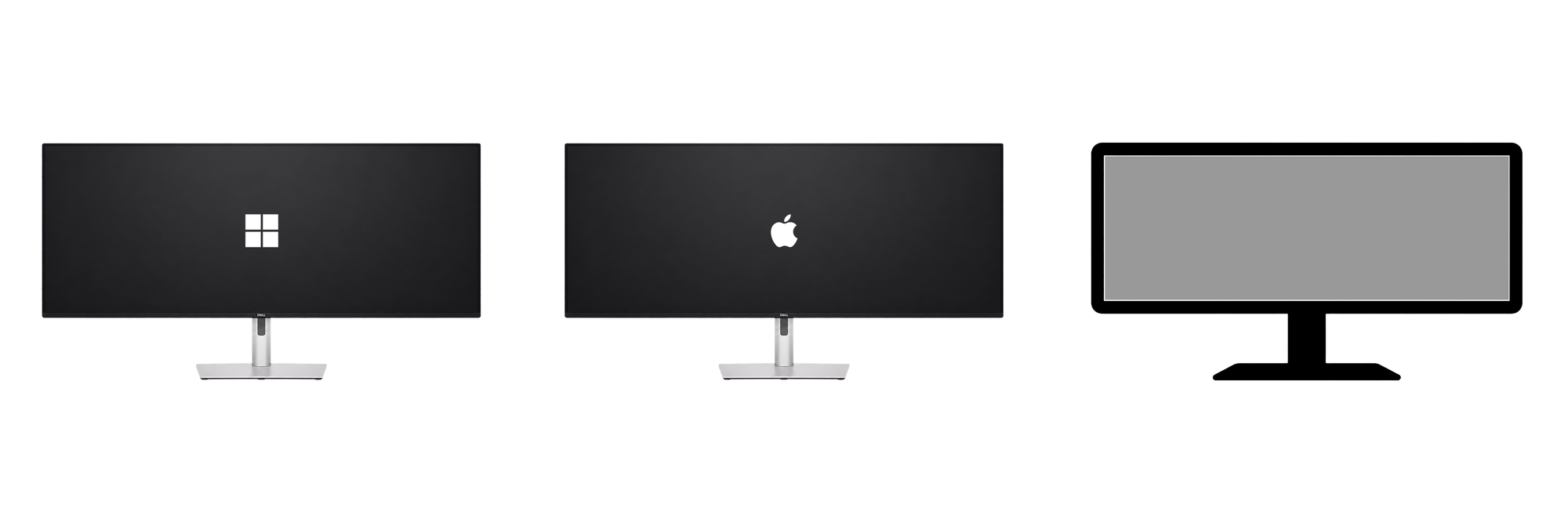
The icons came out of a ChatGPT session: one 1024-pixel master per platform, each one a tiny portrait of the ultrawide itself with the host platform's logo glowing on screen, as if that input were active, plus a neutral gray tray glyph template. The masters are not used as-is. A small pipeline isolates the glyph's enclosed screen area by flood-filling the alpha channel from the corners, then refills that region at 40 percent opacity, because a fully transparent screen disappeared into dark taskbars and a fully opaque one looked like a sticker on light ones. From that one template the same pipeline stamps out every size both platforms want: paired light-glyph and dark-glyph Windows .ico files that the app swaps live as the taskbar theme changes, and an 18-point macOS template pair that AppKit tints by itself.
Shipping the laziness
Both apps currently install the artisanal way: you build them and copy a file. That is about to change. The Windows app is headed to the Microsoft Store soon, and the macOS app should reach the Apple App Store later this year, once Elefunc, Inc. has its developer account, and once a few of the tricks described above are reworked into shapes store review may smile upon; private I2C bridges and hidden hotkey items are exactly the kind of cleverness that needs a second, more diplomatic draft. The icons are on that list too: platform logos do not belong inside third-party store icons, so the store builds get logo-free art. The timing, of course, is each store's call, not mine.
Total bill for never touching the on-screen display again: two single files, six VCP codes, one undocumented bitmask, and five days.
The joystick is still back there. It can stay.