
File Systems Access for Web Agents
An experimental file explorer for the web: one handle interface across Memory, browser storage, local directories, and remote filesystems, with a live playground and generated-file examples.

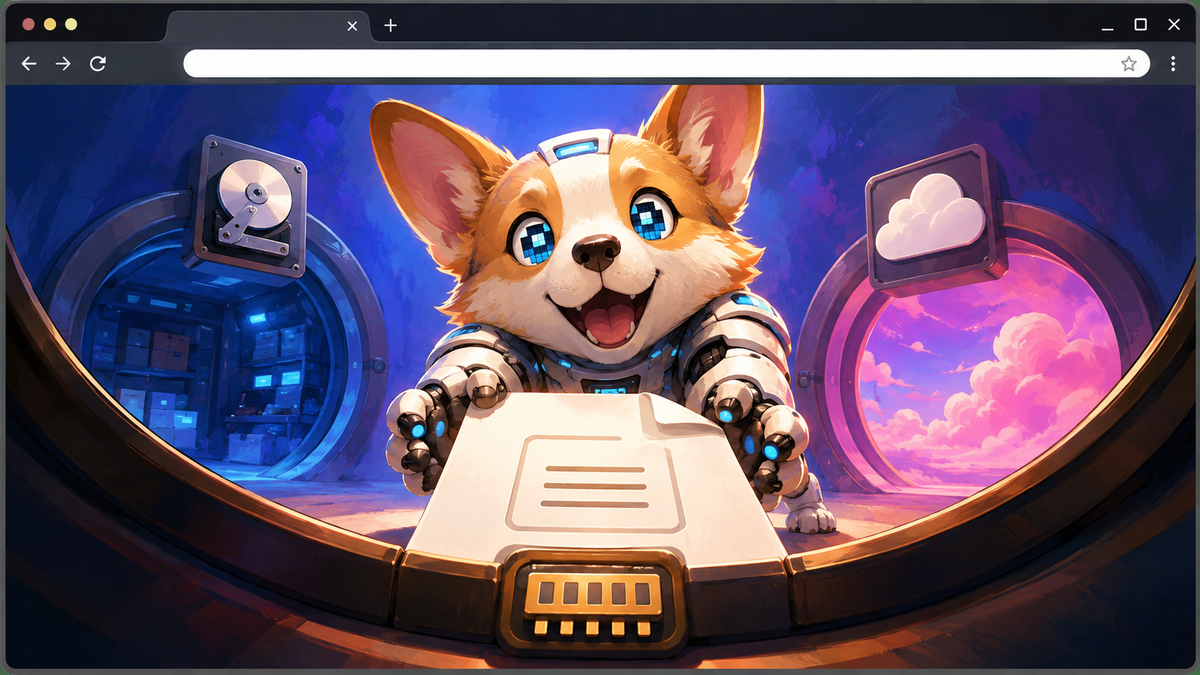
A web agent that produces a useful artifact needs somewhere to put it. A report should be a file that I can inspect. A set of images should belong to a directory that I can browse. Intermediate work should have names, and the final result should be something I can copy, download, or hand to another application. A conversation can describe these things, but I also want a visible workspace in which they exist.
That is the motivation behind <fs-explorer>. I am building <ai-agent> around web platform primitives, and filesystem access is one of the pieces it needs. I will cover that component and its integration in a separate post. Here I want to concentrate on the filesystem layer: a custom element that lets people work with files, backed by handles that application code can use directly.
The choice of handles matters. I want an application to ask a directory for a file, read that file, or open a writable stream without first rebuilding those operations around every storage service it encounters. I also want the interface to make the consequences of an operation visible. Copying a report into temporary memory and copying it into a remote store can share a programming shape while having very different implications for persistence, access, and failure.
<fs-explorer> brings those two needs together. It presents named mounts through one explorer and works with directory and file handles beneath that interface. Memory is one implementation of those handles. The browser's private storage and a user-selected directory are other possibilities. Remote sources extend the same arrangement, with their own constraints. This remains an early experiment; the code and examples here describe the current deployed component, rather than a promise that every backend behaves identically.
The best place to start is with a filesystem you can actually change.
A filesystem you can try
Live · Memory
Open a folder, preview a file, or try the API actions below. All seven explorers in this article share one Memory filesystem and a read-only Clock. Edits carry between sections. Reloading this page or choosing Reset all examples restores every view and the original files.
Loading the shared workspace… The article and example code remain available below.
The snippets use FSExplorer, Memory, memory, workshop, and explorer from the initialization explained in the article. Each action uses the shared workspace’s captured handles.
Create a text file in Workshop, or replace its contents on the next run.
Show runnable code
async function createExample() {
  const file = await workshop.getFileHandle('hello.txt', {create: true});
  const writer = await file.createWritable();
  try {
    await writer.write('Hello from the Memory filesystem.\n');
    await writer.close();
  } catch (error) {
    try { await writer.abort(); } catch {}
    throw error;
  }
  await explorer.reveal(file, {tabs: 'auto'});
  return 'Wrote Workshop/hello.txt. Run it again to replace the contents.';
}

await createExample();Read Workshop/hello.txt after choosing Create + write.
Show runnable code
async function readExample() {
  let handle;
  try { handle = await workshop.getFileHandle('hello.txt'); }
  catch (error) {
    if (error.name === 'NotFoundError') return 'Run Create + write first to make Workshop/hello.txt.';
    throw error;
  }
  const file = await handle.getFile();
  return await file.text();
}

await readExample();Select Workshop/hello.txt where it lives, regardless of the displayed folder.
Show runnable code
async function revealExample() {
  let file;
  try { file = await workshop.getFileHandle('hello.txt'); }
  catch (error) {
    if (error.name === 'NotFoundError') return 'Run Create + write first to make Workshop/hello.txt.';
    throw error;
  }
  const result = await explorer.reveal(file, {tabs: 'auto'});
  return `Revealed ${result.revealed.length} file. Open hello.txt to preview it.`;
}

await revealExample();Watch Workshop, then write activity.txt. The observed event appears in the result.
Show runnable code
let observer = null, activityCount = 0;
const showResult = console.log;

async function observeExample() {
  observer?.disconnect();
  observer = new FSExplorer.FileSystemObserver(records => {
    showResult(records.map(record =>
      `${record.type}: ${record.relativePathComponents.join('/')}`
    ).join('\n'));
  });
  await observer.observe(workshop, {recursive: true});
  const handle = await workshop.getFileHandle('activity.txt', {create: true});
  const writer = await handle.createWritable();
  try {
    await writer.write(`Workshop update ${++activityCount}\n`);
    await writer.close();
  } catch (error) {
    try { await writer.abort(); } catch {}
    throw error;
  }
  await explorer.reveal(handle, {tabs: 'auto'});
  return null; // Keep the observer's output visible.
}

await observeExample();Open a file picker whose root is the captured Memory folder.
Show runnable code
async function pickExample() {
  const [handle] = await explorer.showOpenFilePicker({
    id: 'article-memory', root: memory, startIn: memory, multiple: false
  });
  const file = await handle.getFile();
  return `Selected ${file.name} (${file.size} bytes, ${file.type || 'untyped'}).`;
}

await pickExample();Read the shared read-only Clock. Each getFile() calls its snapshot function; no timer is running.
Show runnable code
async function clockExample() {
  const handle = await clock.getFileHandle('now.json');
  return await (await handle.getFile()).text();
}

await clockExample();Result
Choose an action above.
A filesystem inside this article
The explorer above opens Memory, the shared workspace for this entire article. Seven explorer views appear along the way: the main workspace, generated files, a picker workspace, two views for observing changes, and two styled views. They use the same Memory handles. A file created near the top is still there when you reach the examples below; each view keeps its own navigation, tabs, and selection.
Every view also mounts the same read-only Clock filesystem from the start. The Read generated file action asks it for a fresh snapshot. Reset all examples rebuilds Memory and Clock together and returns every view to its starting folder. Reloading the article does the same.
Displayed imports use //example.com/fs/.js as a placeholder. When adapting the code, replace example.com with the origin serving your component deployment. The examples assume an HTTPS page and use a protocol-relative module URL.
Memory does not ask for a folder on your device. These examples operate on the handles created for this article. Choosing a native directory through the explorer is a separate action, and the browser controls that choice. For the tour, everything needed is already inside Memory. The small preview fixtures are deliberately ordinary: text, Markdown, JSON, an HTML document without scripts, images, audio, video, and a PDF.
Start with README.md, then open Previews. The Search directory gives filename filtering a few useful names to work with. Transfers contains a source and destination with a deliberate conflict. Workshop starts empty for the write and observation examples; Outputs starts empty for saved reports and notes. This is a working directory structure, so renaming or deleting an entry changes what later examples will find. Use Reset all examples when you want the original fixtures back across the article.
I use Memory because it lets the article demonstrate real operations with a short, understandable lifetime. The examples do not need an account, an upload endpoint, or a durable scratch directory. That choice also makes an important property explicit: the explorer can remember information about a mount without preserving the mount's data. Memory contents live in this page's JavaScript runtime. Saving a descriptor that says how to reopen a folder does not turn those contents into durable storage.
A tour of the explorer
Navigation, tabs, and selection
The explorer opens folders, keeps a navigable path, and supports multiple tabs. Open Transfers/Source and Transfers/Destination in separate tabs through the folder menu. Those two views make a useful copying exercise: select an item in one folder, switch to the other, and paste. The destination remains visible as a distinct place in the workspace.
Tabs represent views of directories. Opening the same filesystem twice does not create two copies of it. If an operation changes the source directory, another tab looking at that directory should show the same underlying contents when refreshed. This is useful when I want one tab on input material and another on the output folder while a task is running. It also means that closing a tab is a navigation action, not a deletion operation.
Selection gives commands their scope. A file menu can preview or rename one file; a selection can supply several inputs to a copy or download. The context menu exposes the operations that apply to the selected entries and their destination. A read-only mount or an unavailable operation should be apparent in that interface, instead of requiring the reader to infer access from an icon alone.
Try moving through the grid with the keyboard as well as the pointer. The component maintains focus separately from selection and provides keyboard commands for familiar actions. There is a practical reason to care about both: moving focus to examine a nearby entry should not make a batch selection impossible to understand. The same distinction matters when a dialog closes and focus returns to the file it was operating on.
There is also a difference between a mount and a folder inside it. At the virtual root, the entries are mounts. Their actions include opening, renaming the mount, reordering it, and ejecting it. Inside a mounted filesystem, ordinary directory operations apply. Calling a mount Research is naming its place in this explorer; that label is not necessarily the name of the directory in its original storage system.
Previews that let the file remain a file
Open the files in Previews to see how the component handles different content. Plain text and JSON give a direct view of their text. Markdown has a rendered preview. Images, audio, video, HTML, and PDF use appropriate browser presentations. A file without a supported preview can still be useful: the fallback offers a download when its contents are available.
The preview has previous and next controls, so a directory can serve as a collection to inspect without repeatedly closing and reopening the viewer. Previews belong to their explorer tabs. Switching tabs lets me return to the other directory while retaining the association between the preview and the folder it came from. That is particularly helpful for comparing a generated image with the input collection that produced it.
These are previews, rather than a built-in text editor. The text display is useful for reading hello.txt or checking the JSON fixture, but typing into a document is not part of this interface. Later examples write through file handles. An application can supply its own editor over the same handles, choosing its own buffering, validation, save behavior, and conflict policy.
HTML illustrates why previewing needs explicit behavior. The current component blocks authored scripts by default and offers an Allow scripts control with scope and duration choices. The fixture in this article contains no scripts and needs no permission change. A preview's ability to render a document should not be confused with a decision to execute the programs that document contains. For application integration, I would keep that decision visible to the person inspecting the file.
The Track changes option adds another useful mode: leave a preview open while compatible observation reports modifications to its file. This is a way to inspect output as it changes. It is still dependent on what the underlying source can report; a rendered preview is not itself a subscription to every possible writer. I will return to observation after the filesystem examples.
Previewing is also a read. For Memory, that is inexpensive for the small fixtures here. For a remote file, obtaining its contents may require a request and may fail. For generated content, it may run a provider. I want applications to preserve that distinction instead of assuming that because a name appeared in a directory listing, the entire file has already been fetched.
Search means filenames in this folder
Open Search and enter agent report. The matching names include Agent report.txt and Agent report.json. The filter splits the query into words, matches them case-insensitively against each entry's name, and requires every word to occur. Matching portions receive highlights. The expression is a literal filename query, so punctuation is not an invitation to execute a regular expression.
Now try notes. Meeting notes.md appears because its name matches in this directory. The separate notes.md in Transfers/Source does not appear here. The explorer is filtering the current folder; it is not walking the mount recursively or reading file contents. That boundary makes the behavior predictable and avoids turning a small navigation action into an unbounded backend traversal.
For an application that needs full-text search, I would treat indexing and querying as a separate capability. A search service could return handles or paths for the explorer to reveal. It would then have somewhere to explain freshness, scope, ranking, and permissions. Those are substantial decisions, especially when some mounted sources are remote or only partially accessible.
For the tour, clear the filter before creating or pasting entries into the current folder. The component disables creation actions while searching, which avoids producing a new entry that immediately disappears behind the active filename filter. This is a small interaction detail, but it addresses a real ambiguity: the folder remains the destination even when the list shows only part of it.
Clipboard operations and drag and drop
In Transfers/Source, select notes.md and copy it. Open Transfers/Destination and paste. A copy produces a destination entry while retaining the source. Cutting an entry expresses a move, so completion also has consequences for the source. The explorer tracks this intent rather than treating every clipboard operation as a bag of detached bytes.
There are two useful clipboard concepts here. Copying an explorer entry can preserve enough information for another operation in the same page session to identify the handle and its intended effect. Copying text from an unrelated application supplies text content. A copied path is another thing again: Copy as path gives a description of where an entry lives in the explorer. A path string does not carry the handle or the permission needed to read it.
The browser's clipboard and drag interfaces determine what the page actually receives. Sometimes the input includes a filesystem handle; sometimes it includes a file or a legacy directory entry; sometimes it is text. The component has paths for these cases, including browser-specific limits around external directories. An operating-system folder that the browser does not expose as a hierarchy cannot be reconstructed faithfully from a filename alone.
Drag and drop follows the same underlying concern: capture a meaningful source and choose an actual destination. You can use the Memory fixtures to explore transfers within the component. Importing from the desktop is optional and has different browser requirements. It is useful to keep those experiments separate at first, because the Memory case demonstrates the operation itself without adding native permissions or operating-system integration to the question.
For outgoing content, Download gives a direct route through the browser. File-only selections download as files; a selection containing a folder is prepared as a ZIP archive. The current folder archive uses ZIP's store mode, so it packages the tree without promising compression. Archive creation appears as an operation because enumerating and reading a directory tree can take time. Downloading the seeded Transfers folder is a compact way to try this behavior.
The download has its own lifetime after the browser accepts it. Reset all examples rebuilds the shared workspace, but it will not remove a file that you chose to download. That is a useful example of a boundary between the in-page filesystem and an artifact handed to another system.
Conflicts and unfinished work
Both transfer folders contain a file called report.txt, with different contents. Copy the source version into the destination to bring up a conflict. The choices are Replace, Keep both, and Skip, with an option to apply the choice to all conflicts in that operation. Try Keep both first, then inspect the destination. Choose Reset all examples before trying Replace if you want the starting state to remain easy to compare.
These decisions belong to the operation, because the destination already has an entry with that name. A successful source read cannot settle the question of which destination content to retain. The same issue applies if a file and a directory use the same name. The interface needs to explain the collision while preserving enough context to let someone decide what should happen next.
The operation display is useful beyond a progress indicator. Transfers can be running, waiting for a decision, completed, cancelled, or failed. Skipped entries and retained source entries have different meanings from copied entries. A move that retains part of its source is not equivalent to a complete move, even when some destination files were written successfully.
Cancellation deserves similar precision. Once an operation has written destination entries, stopping it cannot make those writes never have happened. The component can offer recovery choices for completed changes, including keeping them or deleting newly created entries where that is available. Replacements and other changes to existing entries may be permanent.
This is especially relevant across storage systems. I cannot assume that two independent backends participate in one atomic transaction. An interface can collect an operation, track its steps, and report what happened, but its wording should follow the guarantees it can actually provide. For the article's small Memory transfers, these cases are easy to inspect. The same vocabulary becomes more consequential when a destination involves latency, quotas, or network failures.
The interface underneath the interface
Handles as the shared vocabulary
The core objects are directory handles and file handles. A directory handle enumerates entries, finds a named child, creates a child when requested, removes entries, and resolves descendants relative to itself. A file handle produces a File snapshot and, when writable, a stream for writing content. This follows the familiar shape of the web platform's File System API.
Here is a small operation that requires only a directory handle:
async function readText(directory, name) {
  const handle = await directory.getFileHandle(name);
  const file = await handle.getFile();
  return file.text();
}
The function does not need an explorer. It does not know whether the directory came from Memory or another compatible source. It also does not promise that the operation is instantaneous, durable, or always permitted. Its asynchronous shape leaves room for a backend to perform the work and report failure. The caller still decides how to show loading state and how to handle a missing or inaccessible file.
I find that separation useful when building an application. The explorer is one consumer of handles, with browsing and interaction responsibilities. A parser, editor, image processor, or report generator can be another. Both can work on the same files without making the rendering of the directory list the application's storage API.
The contract needs more care than matching method names. A source has to decide what a file snapshot means, when a write becomes visible, how identity works, what happens after deletion, and how permission requests behave. It must reject unsupported operations honestly. A read-only listing with an invented successful createWritable() would be much worse than one that fails clearly.
Memory implements the handles as JavaScript objects backed by an in-process tree. It is not the browser's native FileSystemDirectoryHandle class, even though it supports the same useful methods. I therefore write generic consumers against the required behavior rather than using a native-class instanceof check as a universal admission test. The explorer likewise examines the directory interface when accepting a mount.
The union root supplies names
The explorer exposes a virtual root whose children are its named mounts. With the demo installed, the path to a generated workshop file is /Memory/Workshop/hello.txt. The first segment identifies a mount; the rest is resolved inside its filesystem. An application could add another mount called Archive, producing a sibling namespace without moving either source's contents.
This root is an organizing directory, with special rules. It enumerates mounts and resolves mounted descendants, but it does not allow ordinary files to be created directly under /. Adding a root child uses mount(), and removing that relationship uses unmount(). Those operations change the explorer's topology. Deleting a file inside Memory is a different operation on the underlying filesystem.
Sharing data does not merge the explorers' navigation state. Renaming a mount or ejecting it changes that view's namespace; modifying a file changes the shared tree seen by every view that opens its folder. Reset all examples restores the common mount names and each view's starting location.
The distinction prevents a misleading interpretation of paths. /Memory/Workshop is meaningful within this explorer's mount set. It is not an absolute path on the machine running the browser, and another explorer can assign the same storage a different mount name. A copied path is useful for logs or navigation, but an application should retain a handle when it needs a stable reference to the selected entry.
Handles also have identity independently of JavaScript object identity. The handle interfaces include isSameEntry(), and directory resolution can tell whether a candidate is a descendant. A successful resolve() returns an array of relative path components; an unrelated handle yields null. That shape is documented for the platform directory interface and implemented by Memory and the union root.
It is possible to present overlapping storage through more than one mount. That can be useful, but it means that a single physical entry may have more than one path in an explorer. The union implementation provides resolveAll() for that circumstance. Applications that only need an output handle should avoid turning the choice of one display path into an assertion that no other path can refer to the same data.
Storage operations do not follow the active tab
The component offers directory() and file() as convenient entry points for union paths. Their resolution is independent of the folder the reader is currently viewing:
const workshop = await explorer.directory('/Memory/Workshop');
const output = await explorer.file('/Memory/Workshop/hello.txt', {
  create: true
});
The second call can create missing directories along its path as well as the final file. That is a useful convenience, but I would only enable it when creation is intended. A read should generally omit create; otherwise a typo in a path risks becoming a new empty artifact instead of a clear missing-file error.
Separating resolution from navigation matters for interactive work. A person can browse Previews while a task writes into Workshop. The output target should remain the directory selected for the task. If the task instead reads a mutable notion of “current folder” just before writing, a navigation click can silently change the destination.
The buttons in this article retain the shared Memory handles for exactly that reason. Each action has an explicit target, even if the reader explores another folder or mount. After writing, the reveal action can bring the result into its own view. The other explorers retain their locations while showing changes to the same underlying data.
There is a useful consequence for application structure: a task can receive its input and output directories as arguments. It does not need to discover them through DOM selection state or ask the explorer which tab is active. Tests can supply a small Memory tree; a real workflow can supply directories the user selected. The business operation remains an ordinary asynchronous function, and the explorer remains available to explain its inputs and results visually.
That arrangement also makes naming a conscious choice. An output function can choose report.json within the directory it was given, while the application chooses which directory receives the report. The two responsibilities are related but separate. Passing the entire union root to every function would be convenient, but it would also encourage those functions to depend on mount names that belong to the application's current workspace configuration.
The API surface, at a glance
I use the same small vocabulary across these filesystems: obtain a handle, enumerate a directory, read a File, and write through a stream. Native handles and JavaScript adapters share that vocabulary; their permissions, persistence, and supported operations still depend on the backend.
import { FS, FileSystemObserver } from '//example.com/fs/.js';
const { Origin, Directory, Memory, EdgeKV, Share, Listing } = FS;
Here, //example.com stands for your deployment origin. FS is also available as FSExplorer.FS on the component constructor.
| Interface or entrypoint | Exposed API | What is unified |
|---|---|---|
| Explorer pickers | showDirectoryPicker(), showOpenFilePicker(), showSaveFilePicker() | Platform-shaped results: a directory handle, an array of file handles, or a save-file handle, across the mounted sources. Platform options apply where relevant; root and explorer-path startIn are component additions. |
| Handle identity | kind, name, isSameEntry() | The standard file/directory handle shape, implemented natively or by an adapter. |
| Handle permissions | queryPermission({mode}), requestPermission({mode}) | The File System Access permission shape, with read and readwrite. An adapter reports its granted capability; requesting permission does not automatically elevate it. |
| Directory handles | getFileHandle(), getDirectoryHandle(), removeEntry(), resolve(), entries(), keys(), values(), [Symbol.asyncIterator]() | Standard lookup, creation, removal, relative paths, and asynchronous iteration. Creation uses {create:true}; recursive removal uses {recursive:true}. |
| File handles | getFile(), createWritable({keepExistingData}) | Read a real browser File; open a writable stream where writing is permitted. |
Returned File / Blob | name, lastModified, size, type; text(), arrayBuffer(), bytes(), slice(), stream() | Actual platform objects, inheriting browser support. stream() supplies a ReadableStream, including ordinary pipeTo() interoperability. |
| Writable file streams | write(), seek(), truncate(); close(), abort(), getWriter(), locked | The filesystem stream shape plus ordinary WritableStream behavior. Memory and EdgeKV additionally support mode and createWritable({mode}), using siloed or exclusive; this is not a distributed lock. |
| Origin storage | FS.Origin.getDirectory(), .estimate(), .persist(), .persisted() | Wrappers around navigator.storage, applying specifically to origin storage. |
| Change observation | new FileSystemObserver(callback), .observe(directory,{recursive}), .unobserve(directory), .disconnect() | An experimental-proposal-shaped adapter using native observation, backend hooks, or explorer mutation announcements. |
| Additional handle operations | move(destinationOrName,newName?), remove({recursive}); Memory handles also have copy(destinationOrName,newName?) | Browser-specific and adapter extensions, rather than a portable promise that every backend can perform them. |
The core handles and streams follow the File System Standard; pickers and permission methods follow File System Access. Returned files follow the File API. Observation follows the FileSystemObserver proposal.
The boundaries matter:
- Origin and Directory return native handles. Directory wraps the browser's native picker trio. Unsupported native methods remain unsupported.
- Memory provides
new Memory(...),Memory.from(), andMemory.sourceFor(). Its contents reset on reload; directmove()stays within one Memory filesystem. - EdgeKV and Share provide JavaScript handles; Share is restricted by its grant. Direct
move()stays within the picked capability. Remote transfers are not atomic, and the current adapter limits files to 25 MiB. - Listing is a flat, read-only directory: reading and iteration work; mutation does not. The virtual
/contains mounts, managed throughmount()andunmount(). ItsresolveAll()is another component extension.
Observer records expose type, root, changedHandle, relativePathComponents, and relativePathMovedFrom; some handle fields can be null. Fallback announcements do not detect every external change. Mounts, tabs, navigation, sharing, and operation controls are component APIs described elsewhere in this walkthrough.
createSyncAccessHandle() and FileSystemSyncAccessHandle are not unified here. The adapters do not implement them; native OPFS synchronous access belongs in a dedicated worker, as defined by the File System Standard.
Building the Memory workspace
Import, seed, register, and connect
Memory accepts an array of entry descriptors. An entry with an entries array is a directory; an entry with content is a file. File content can be a string, a Blob, or binary data. Metadata such as MIME type can be supplied explicitly. The article's media fixtures use those same descriptors; there is no special demonstration filesystem behind the visible files.
The compact seed below includes the text fixtures and two empty working folders. The full preview collection uses the same descriptor shape. Create this tree once per article session, then pass the same handles to every view.
The snippets share four handle variables: memory is the writable root, workshop and outputs are its working directories, and clock is the read-only generated root. In each example, explorer means that section's view. The page's container IDs and result labels are application plumbing; the filesystem operations use the captured handles.
import FSExplorer from '//example.com/fs/.js';

const { Memory } = FSExplorer.FS;

const memory = new Memory({
  name: 'Memory',
  entries: [
    {
      name: 'README.md',
      content: '# Shared Memory workspace\n\nReset all examples restores this tree.\n'
    },
    {
      name: 'Previews',
      entries: [
        { name: 'hello.txt', content: 'A file in browser memory.\n' },
        {
          name: 'agent-task.json',
          content: JSON.stringify({ task: 'write a report' }, null, 2)
        }
      ]
    },
    {
      name: 'Search',
      entries: [
        { name: 'Agent report.txt', content: 'A text report.\n' },
        { name: 'Agent report.json', content: '{"status":"draft"}\n' },
        { name: 'Meeting notes.md', content: '# Meeting notes\n' }
      ]
    },
    {
      name: 'Transfers',
      entries: [
        {
          name: 'Source',
          entries: [
            { name: 'report.txt', content: 'The source version.\n' },
            { name: 'notes.md', content: '# Notes to copy\n' }
          ]
        },
        {
          name: 'Destination',
          entries: [
            { name: 'report.txt', content: 'The destination version.\n' }
          ]
        }
      ]
    },
    { name: 'Workshop', entries: [] },
    { name: 'Outputs', entries: [] }
  ]
});

const workshop = await memory.getDirectoryHandle('Workshop');
const outputs = await memory.getDirectoryHandle('Outputs');
const clock = makeClock();
makeClock() is the function shown in Files that generate themselves below. Keep that function, the seed, and this mounting helper in the same module. The helper registers both shared sources before connecting each element:
const memorySource = Memory.sourceFor(memory, { ...Memory.source });
const clockSource = Memory.sourceFor(clock, {
  id: 'article-clock',
  label: 'Clock',
  defaultName: 'Clock',
  fixedMode: 'read'
});

async function mountView(host, startIn = '/Memory') {
  // Constructor-time attributes must already exist when the element upgrades.
  const template = document.createElement('template');
  template.innerHTML = `
    <fs-explorer
      aria-label="Shared article workspace"
      storage-key="fs-article-${crypto.randomUUID()}">
    </fs-explorer>
  `;
  const fragment = document.importNode(template.content, true);
  customElements.upgrade(fragment);
  const explorer = fragment.querySelector('fs-explorer');
  explorer.style.blockSize = 'min(720px, 80dvh)';
  explorer.registerMountSource(memorySource);
  explorer.registerMountSource(clockSource);
  explorer.mountsInitial = [
    { name: 'Memory', handle: memory, sourceId: 'memory', persist: false },
    {
      name: 'Clock', handle: clock, sourceId: 'article-clock',
      requestedMode: 'read', persist: false
    }
  ];
  host.replaceChildren(fragment);
  await explorer.ready;
  await explorer.navigate(startIn);
  return explorer;
}

const explorer = await mountView(document.querySelector('#workspace'));
Place <div id="workspace"></div> where that view belongs. Additional containers use the same helper with another starting path, such as /Memory/Outputs or /Clock. Each call creates a separate explorer and mount namespace around the same two roots. The article uses this pattern for seven views; no file fixtures need to be copied for those views.
There are two important initialization details. First, the explorer reads storage-key in its constructor. Setting the attribute after an already-defined custom element has been created is too late to select a different storage scope for that instance. Here the element is parsed inside an inert template with the attribute present, then imported and upgraded while detached. The explicit block size gives the view room for its own scrolling directory listing.
Second, registering the sources before connection makes the shared roots available during initialization. Memory.sourceFor() supplies picker and serialization behavior for a particular tree. The Memory picker, initial mounts, and application buttons therefore refer to the same data. Clock is also present from the start, so reading a generated file does not need to replace or register a source later.
persist: false applies to these mount records. A fresh storage scope per view prevents a previous visit's mount set from being restored into the walkthrough. Neither setting saves Memory bytes. Reset all examples creates a new session, replaces the shared roots, and reconnects every view; it also clears the picked file, observation log, and generated results. Applications that need documents to survive reload must choose storage that retains those documents.
Create, write, close, and read
The first example button creates Workshop/hello.txt and writes a greeting. Its essential operation uses the captured Workshop handle:
const hello = await workshop.getFileHandle('hello.txt', {
  create: true
});
const writable = await hello.createWritable();

try {
  await writable.write('Hello from the Memory filesystem.\n');
  await writable.close();
} catch (error) {
  await writable.abort().catch(() => {});
  throw error;
}
Closing the stream is part of completing the write. Memory stages the stream's content and commits it when the stream closes, so the code waits for close() before reporting completion or reading the result. The same create-write-close sequence is the standard pattern for the platform's writable file stream API.
Calling getFileHandle() with create: true returns an existing file if one already uses that name. Opening its writable stream without keepExistingData starts a replacement write. That makes the example repeatable: pressing the button again writes the same named file instead of accumulating numbered outputs. An append operation would need a different, explicit sequence that retains existing bytes and positions the write.
Read the result by asking the handle for a new File:
const saved = await workshop.getFileHandle('hello.txt');
const file = await saved.getFile();
const text = await file.text();

console.log({ name: file.name, size: file.size, text });
The returned File is a snapshot. Keeping it in a variable does not make its bytes update after the underlying entry changes. Ask the handle for another snapshot when a later read should reflect a completed write. This separation lets code hold a particular input while subsequent operations continue to use the entry's handle.
To show the created entry, use the explorer's presentation API:
await explorer.reveal(hello, {
  tabs: 'auto',
  activate: true,
  focus: true
});
reveal() selects entries where they live and reports which targets it revealed or could not find; it rejects if none can be revealed. It does not edit the file, and it does not need to replace the application's retained output handle with whatever happens to be selected afterward. The article's reveal button uses that same separation: produce or read the artifact through Memory, then ask the explorer to make it visible.
Errors belong to the filesystem contract
An example becomes more useful when the failure cases are as understandable as the successful path. Delete hello.txt through the explorer, then try to read it again. A lookup without create fails because the entry no longer exists. Creating the file again establishes a new entry; it does not make every old handle to the deleted entry valid again. Memory tracks that distinction explicitly.
A kind mismatch is different. If hello.txt names a directory, asking for it with getFileHandle() raises a TypeMismatchError. A missing entry produces a NotFoundError. The application can use those distinctions to explain the problem, but it should not catch every error and silently substitute an empty file. That would convert permission failures, invalid names, and missing inputs into apparently successful work with different data.
Memory also has concrete name rules. It normalizes names, performs case-insensitive lookup, and rejects names containing path separators and certain other invalid characters. getFileHandle('Workshop/hello.txt') is therefore not a shorthand for traversing a directory. Use a directory handle for Workshop, or use the explorer's union-path convenience method. Separating one entry name from a path removes an ambiguity that otherwise tends to spread through file utilities.
These choices are part of this backend's behavior. An application intended to work across multiple sources should choose portable filenames, handle rejected operations, and avoid assuming that all providers share one operating system's rules. The common methods help organize that work; they do not erase the contract implemented by each source.
Finally, completing a write and revealing its result are separate asynchronous steps. If a file has been written successfully but its tab cannot be opened, reporting “write failed” would be inaccurate. I would report the saved artifact first and the presentation problem separately. The same principle applies when a later read fails: an operation's status should identify what was attempted, rather than collapse the entire workflow into one undifferentiated error.
These few operations are enough to connect a worker that produces content, an application that manages task state, and an explorer that lets a person inspect the result. The next question is what should sit behind those handles when the workspace needs a different lifetime or lives somewhere other than this page.
One interface across several backends
The Memory examples establish the vocabulary: obtain a directory, find or create an entry, read a File, and write through a writable stream. The next step is to ask which parts of that vocabulary survive a change of storage. That question matters more than whether two backends produce identical folder icons. Application code needs to know where data lives, what grants access to it, and what a completed operation means.
The deployed module groups its built-in filesystem implementations under FSExplorer.FS. The explorer registers their mount sources, which describe how to obtain a root and how that root should appear in the interface. Here is the practical distinction between the six sources available in this version:
| Source | What the mount represents | Persistence and access |
|---|---|---|
| Memory | An in-process tree of directory and file handles | Contents live with the page; the tree can be writable or read-only. |
| Origin | The current page origin's private filesystem, or a directory within it | Browser-managed storage with its own quota and persistence policy. |
| Directory (shown as Folder in the mount menu) | A folder chosen through the browser's native directory picker | Real device files, subject to browser support and the user's grant. |
| EdgeKV | A remote store exposed through the EdgeKV filesystem adapter | Remote identity, server permissions, backend limits, and eventual consistency. |
| Share | An EdgeKV store viewed through a particular share grant | The grant determines what the recipient may access and change. |
| Listing | The file list exposed by a hosted share URL | A read-only view of the files that URL makes available to the viewer. |
I keep those differences visible because a common interface is useful only if it remains truthful. Mounting a remote store does not give it local latency. Mounting a browser folder does not remove its permission checks. Restoring a mount description does not establish that its contents are still there. The interface gives an application a common starting point; the source supplies the facts needed to operate responsibly from there.
Memory: application-owned working space
Memory is useful wherever the application owns the entire working set: an interactive example, a scratch directory, a generated export, or a temporary workspace that a user can inspect before copying elsewhere. The implementation accepts ordinary strings, blobs, and binary content. Its handles support the same read and write sequence used earlier, without asking the reader to select a device folder or sign into a remote service.
That makes Memory a good place to teach the API, but also a useful staging area inside an application. A task can prepare several related outputs under one root, expose the intermediate result for inspection, and let the user decide which files to retain. The tree itself has no independent durability mechanism. Keeping a directory handle in a JavaScript variable keeps access to the tree during that page's lifetime; it does not save the tree for tomorrow.
There is a related distinction in Memory.sourceFor(). Its default serialization records a directory's path relative to a supplied root. Restoration finds that path in the root supplied to the source. This is enough to reconnect a mount to an application-reconstructed tree, but it does not serialize file contents. In this article, I create one seeded tree per session and mount it without persistence in every view. Reset all examples replaces that shared tree and reconnects all seven explorers together. The reset behavior is part of the walkthrough's contract.
Origin: storage belonging to this site
Origin provides access to the origin private file system, usually shortened to OPFS. The root comes from navigator.storage.getDirectory(). OPFS belongs to the page's origin and is not a folder selected from the user's visible filesystem. Its files are managed by the browser; an application should not assume a matching directory hierarchy is available in the operating system's file manager. The web.dev OPFS introduction explains that separation.
For an application, this is a natural place to retain working data between visits without asking the user to manage a project directory. In this embed, the relevant origin is the blog's origin. Loading the explorer's module from another host does not turn OPFS into storage belonging to the module's host. That distinction becomes especially useful when the same component is embedded in several applications: each application obtains its own origin's storage.
The wrapper exposes Origin.getDirectory(), Origin.estimate(), Origin.persist(), and Origin.persisted(). The latter methods make storage policy inspectable; they do not promise unlimited or permanent capacity. Browser storage begins with a policy that may permit eviction, and a persistence request can be refused. A successful request changes the storage mode, while explicit user deletion remains possible. The Storage Standard defines the underlying persistence model.
I would use Origin for retained working state and still give valuable outputs an explicit export path. The explorer can mount an OPFS subdirectory, so the application does not have to make its entire internal storage tree the user's starting point. Saving the mount remembers how to find that directory. If the directory is removed or the site's storage is cleared, the saved description cannot reconstruct its files.
Directory: the user's chosen folder
Directory delegates to the native browser picker. Its value is direct interaction with a folder the user already understands: a project, a downloads directory, or a collection of source material. Selection supplies handles to actual device files. Where the browser supports the API, native picker calls require a secure context and a user gesture; saving a handle also does not guarantee its permission remains granted in a later session. These requirements are documented in Chrome's File System Access guide.
The corresponding application flow should therefore begin with an explicit user action and be prepared to reconnect later. The explorer exposes mount state so the surrounding application can distinguish an active folder from a saved location that needs attention. A visible name in the locations list is a remembered location, not proof of present authority to read or write it.
There is also a useful distinction between importing a file and mounting a folder. Importing copies content into a destination filesystem. Mounting gives the application an ongoing route to the chosen folder through its handle. Both can begin with a drag or a picker, but they establish different relationships to the original data. I want an application to make that relationship clear before a user starts editing or moving important material.
EdgeKV: remote behavior remains remote
EdgeKV maps a remote store onto the handle interface. Its source describes an endpoint, identity operations, sharing support, transfer helpers, and backend capabilities. The default endpoint is derived from the location of kv.js; additional deployments can be addressed through the adapter's endpoint support. The interface is therefore not tied to a single remote directory merely because the first explorer was loaded from one host.
The current adapter declares a 25 MiB per-file limit, eventual consistency, no transactions, and support for its bulk transfer path. Its implementation notes also describe approximately sixty-second replication, one write per path per second, and non-atomic transfers. Those are statements made by this deployed adapter, not benchmarks from this article or guarantees that every filesystem shares.
These properties affect both application design and user expectations. An operation can involve several remote requests, and the source and destination can become visible at different times. A progress bar can explain work already done and work still pending; it cannot convert the operation into a distributed transaction. Likewise, immediately reloading a remote view is not a universal consistency barrier.
The explorer avoids treating a remote directory as free to inspect in full. For example, calculating aggregate properties can require explicit work, rather than downloading every file merely to display a folder. That distinction is worth carrying into application code. Enumerate names to navigate; read contents because a user or task needs them. A familiar getFile() method can still represent network traffic and materialized data.
Share and Listing: two different ways to expose files
Share reuses the EdgeKV machinery through a share grant. The recipient supplies a link or token, and the resulting mount represents the access granted by its creator. The source therefore retains the relevant remote behavior and limits. A share can carry restricted access; being able to construct the mount does not turn its recipient into the store's owner.
Listing is a narrower view. It takes a hosted share URL, reads its JSON listing, and exposes the listed files as read-only handles. The deployed implementation presents a flat directory of those files, not an arbitrary recursive crawl of the host. It briefly caches the listing, and reading a file fetches that file from the hosted URL. Creation, writing, moving, and deletion are rejected by its handles.
That narrower contract is useful. A hosted collection can offer familiar browsing and previews without exposing a writable storage API to every viewer. Whether the viewer can list or read particular content remains a property of the host's access rules. Listing and Share can look related in the explorer because they concern shared files, but they should not be described as interchangeable permission models.
Files that generate themselves
A filesystem interface does not require every file to begin as bytes sitting in a persistent store. A file can also be an answer computed when someone reads it. The important question is whether the handle has an intelligible contract: what does it return, when is that result generated, and which operations are allowed?
The Clock example gives that idea a small, inspectable form. It contains a UTC date, a UTC time, and a JSON representation of the current instant. Its directory structure is fixed. Its contents are produced lazily, when the corresponding file handle's getFile() method requests a snapshot. There is no background timer and no network service.
Clock is already mounted beside Memory in every view. The dedicated explorer below opens it directly; Read fresh snapshot requests a new snapshot, and the write check demonstrates that its handles reject modification. This is the factory referenced by the shared initialization:
function makeClock() {
  return new Memory({
    name: 'Clock',
    writable: false,
    entries: [
      {
        name: 'date.txt',
        snapshot() {
          const now = new Date();
          return {
            content: now.toISOString().slice(0, 10) + '\n',
            type: 'text/plain',
            lastModified: now.getTime()
          };
        }
      },
      {
        name: 'time.txt',
        snapshot() {
          const now = new Date();
          return {
            content: now.toISOString().slice(11, 19) + ' UTC\n',
            type: 'text/plain',
            lastModified: now.getTime()
          };
        }
      },
      {
        name: 'now.json',
        snapshot() {
          const now = new Date();
          return {
            content: JSON.stringify({
              iso: now.toISOString(),
              epochMilliseconds: now.getTime()
            }, null, 2) + '\n',
            type: 'application/json',
            lastModified: now.getTime()
          };
        }
      }
    ]
  });
}
Read the time as a file
Clock is mounted beside the shared Memory workspace. Open a file, then read a fresh snapshot below. Time passing does not produce a filesystem change event.
Generated files · read-only
Loading the shared workspace…
Show runnable code
const handle = await clock.getFileHandle('now.json');
const snapshot = await handle.getFile();
console.log(await snapshot.text());

try {
  const writable = await handle.createWritable();
  await writable.abort();
} catch (error) {
  console.log(error.name); // Clock rejects writable creation.
}Preparing the shared workspace.
Choose an action in this section.
This resets the files and views in every example in the article.
The source ID identifies the implementation used by this mount. The displayed name identifies its location in the explorer's union root. I use an article-specific source ID so this example does not replace the built-in Memory source. Registration supplies the mounting behavior; the clock handle supplies the files. Those two pieces can be reasoned about independently.
The read-only setting also has two layers here. writable: false makes the Memory tree itself read-only, while fixedMode: 'read' describes the source's access mode to the mounting interface. This is more meaningful than simply hiding a toolbar button: an attempted write through a Clock handle is rejected by the implementation. Provider-backed entries additionally have immutability rules in Memory; this example makes the entire tree read-only so its behavior is easy to explain.
Because Clock is mounted up front, ordinary handle operations work in any of the seven views:
const handle = await explorer.file('/Clock/now.json');
const snapshot = await handle.getFile();
const instant = JSON.parse(await snapshot.text());

console.log(instant.iso, snapshot.lastModified);
Each getFile() call invokes the snapshot callback. Reading the returned File again reads that same result; it does not ask the clock for another time. To obtain a fresh result, call getFile() again. A preview may retain a file snapshot for its own display lifecycle, so I am not promising a clock that ticks inside an already-open preview.
Capturing new Date() once inside each callback keeps that file's content and modification time consistent with each other. It does not make all three files a single atomic snapshot. A reader opening them on opposite sides of midnight could legitimately get different dates. If an application needs a group of related files to describe the same instant, it should capture that instant outside the individual providers and construct the group from that captured state.
The example also separates changing answers from filesystem mutations. Time passing does not add or remove an entry, and these callbacks do not emit change records simply because the next read will differ. A generated source that wants live updates needs an explicit invalidation or notification design. That requirement becomes more significant for status files, metrics, or query results than for a demonstration clock.
I am using Memory's existing handles here, not claiming to have implemented a complete new remote filesystem. A true adapter needs decisions about directory enumeration, entry identity, permissions, missing entries, write and close behavior, error mapping, and the meaning of restoration. Remote access adds authentication, latency, partial failure, limits, and consistency. Memory.sourceFor() supplies a convenient source around a Memory tree; it does not solve those backend responsibilities by itself.
The pattern is still valuable. An application can expose a generated manifest, a task summary, or a derived report as files and immediately reuse navigation, selection, preview, and export behavior. The file abstraction earns its place when those operations are useful to people and application code. It does not require pretending that every underlying service has become a disk.
Embedding in an application
The article uses the full explorer because its purpose is to make the filesystem visible. An application can also use the component as a picker, or treat the visible explorer as one view of handles owned by the application. I prefer to keep that ownership explicit: the application decides which roots it supplies and which actions it enables, while the component provides the browsing interaction.
The picker trio
An explorer instance exposes showDirectoryPicker(), showOpenFilePicker(), and showSaveFilePicker(). These operate over that explorer's mounts. They return, respectively, a directory handle, an array of file handles, and a file handle. They use the familiar option vocabulary for mode, multiple selection, type filters, a suggested name, and a starting location.
The useful addition is root. It scopes a picker to a mounted directory, supplied as a handle or an explorer path. The directory becomes that dialog's root. startIn chooses the initial location within that scope; it does not grant access to a different root. For an application with many mounts, this lets a particular action offer a much more focused choice.
The next explorer turns those three methods into a small workflow. Open file starts in Previews with a text and Markdown filter and reports the chosen file's metadata. Choose folder selects where the next save should begin. Save report writes the metadata as JSON; it becomes available after a file has been selected. Accept the default destination to create Outputs/selected-file.json, then open Outputs in another explorer to inspect the result.
Choose an input, save an output
Open a file to select the report’s input. Optionally choose a folder, then save a JSON metadata report. The default destination is Outputs; every view can browse the result. These pickers stay inside Memory.
Input and output · shared Memory
Loading the shared workspace…
Save report becomes available after Open file returns a selection. This task runs ordinary JavaScript.
Show runnable code
const [selected] = await explorer.showOpenFilePicker({
  id: 'article-text', root: memory, startIn: '/Memory/Previews',
  multiple: false,
  types: [{ description: 'Text and Markdown',
    accept: { 'text/plain': ['.txt'], 'text/markdown': ['.md'] } }]
});
const file = await selected.getFile();
const destination = await explorer.showSaveFilePicker({
  id: 'article-report', root: memory, startIn: outputs,
  suggestedName: 'selected-file.json',
  types: [{ description: 'JSON report',
    accept: { 'application/json': ['.json'] } }]
});
const writable = await destination.createWritable();
try {
  await writable.write(JSON.stringify({
    name: file.name, size: file.size, type: file.type,
    lastModified: file.lastModified
  }, null, 2) + '\n');
  await writable.close();
} catch (error) {
  await writable.abort().catch(() => {});
  throw error;
}Preparing the shared workspace.
Choose an action in this section.
This resets the files and views in every example in the article.
The memory, outputs, and other directory handles come from the shared initialization. Here explorer is the picker workspace's view. The selected file and save location belong to the surrounding application; opening a file in the explorer's own preview does not silently change that application selection.
let selectedHandle = null;
let selectedDirectory = outputs;

function metadata(file) {
  return {
    name: file.name,
    size: file.size,
    type: file.type,
    lastModified: file.lastModified
  };
}

async function chooseFile() {
  try {
    const [handle] = await explorer.showOpenFilePicker({
      id: 'article-text',
      root: memory,
      startIn: '/Memory/Previews',
      multiple: false,
      types: [{
        description: 'Text and Markdown',
        accept: {
          'text/plain': ['.txt'],
          'text/markdown': ['.md']
        }
      }]
    });
    const file = await handle.getFile();
    selectedHandle = handle;
    return metadata(file);
  } catch (error) {
    if (error.name === 'AbortError') return null;
    throw error;
  }
}

async function chooseFolder() {
  selectedDirectory = await explorer.showDirectoryPicker({
    id: 'article-output',
    root: memory,
    startIn: outputs,
    mode: 'readwrite'
  });
  const path = await explorer.root.resolve(selectedDirectory);
  if (path === null) throw new Error('The selected folder is no longer mounted.');
  return '/' + path.join('/');
}
The live example scopes both choices to the same Memory tree used everywhere in the article. It does not need access to a reader's device files to teach selection. Capturing the root handle also makes the intended scope independent of a view's current folder. Choosing a folder changes the save dialog's initial location, but the dialog can still navigate elsewhere within that Memory root.
A save picker chooses a destination handle. The application still creates the writable stream, writes its content, and closes it. That separation gives the application a chance to generate the output after the user chooses a destination. It also means that a successful picker result is not evidence that an application has saved its document. Saving is complete only when the subsequent write sequence succeeds.
async function saveReport() {
  if (!selectedHandle) return null;
  const file = await selectedHandle.getFile();
  const destination = await explorer.showSaveFilePicker({
    id: 'article-report',
    root: memory,
    startIn: selectedDirectory,
    suggestedName: 'selected-file.json',
    types: [{
      description: 'JSON report',
      accept: { 'application/json': ['.json'] }
    }]
  });

  const writable = await destination.createWritable();
  try {
    await writable.write(JSON.stringify(metadata(file), null, 2) + '\n');
    await writable.close();
  } catch (error) {
    await writable.abort().catch(() => {});
    throw error;
  }
  await explorer.reveal(destination, { tabs: 'auto' });
  return destination;
}
The report records name, size, type, and lastModified; it does not copy the selected file's contents. Reading the handle again when saving captures its metadata at that point in the workflow. A file deleted or made inaccessible after selection can therefore fail at this read, and the application should report that failure. Reset all examples clears the captured selection and returns the default save folder to Outputs.
These component methods should not be confused with calling Directory.showOpenFilePicker() or the browser's global picker methods. Directory delegates to native device selection; an explorer instance presents its mounted namespace. The similar result shapes let downstream code work with handles in both cases, while the choice of entry point determines what the user is selecting from.
Only one component picker can be active at a time. Cancellation rejects with AbortError, so it is ordinary control flow for a Cancel button, not automatically a reason to show an error banner. The open-file example handles cancellation locally; the live controls handle it for every picker and keep the previous accepted selection. Other failures deserve a message that explains the action that failed. An application should also avoid launching several pickers from overlapping handlers: one user decision should lead to one selection interaction.
React to public events
The component emits DOM events that bubble across its shadow boundary. An application can listen on the custom element rather than discovering internal buttons or attaching handlers to shadow DOM classes. That keeps integration aligned with the information the component deliberately exposes.
| Event | Useful fields in event.detail |
|---|---|
selectionchange | handles, current, tab |
locationchange | location, tab |
mountchange | record, message |
operationstart, operationchange, operationend | id, operation |
thumbnailfitchange | value |
observationchange | enabled |
sharechange | endpoint, mounts |
For example, a surrounding application can enable an action when the selection contains a file, update its own breadcrumb summary when navigation changes, and display ongoing transfer state somewhere else in its layout. The selection event supplies handles, so application code can inspect the selected entries without deriving their identity from rendered labels.
const subscriptions = new AbortController();

explorer.addEventListener('selectionchange', event => {
  const { handles, current, tab } = event.detail;
  selectionSummary.textContent =
    `${handles.length} selected in ${current.name}`;
}, { signal: subscriptions.signal });

explorer.addEventListener('locationchange', event => {
  const { location } = event.detail;
  locationSummary.textContent =
    '/' + location.path.slice(1).join('/');
}, { signal: subscriptions.signal });
The location's path is an array whose first entry represents the union root. It is not the browser URL, a device absolute path, or a remote service endpoint. Treating those as separate things makes it easier to embed the explorer inside a router-driven application. The article's examples preserve the page's URL and fragment while the explorer changes folders and tabs.
For tab-aware applications, the public tab events include opening, activating, closing, and moving tabs. Read the corresponding snapshots through tabs and activeTab rather than maintaining a second speculative copy of the component's navigation state. UI events can arrive after asynchronous work; the snapshot accompanying an event explains the state being reported.
Observe filesystem changes
Selection events describe interaction. Filesystem observation describes changes to entries. The module exports a FileSystemObserver wrapper that accepts a callback, observes directory handles, and supplies relative paths with its records. The pair below opens the same shared Workshop directory. A file created near the top of the article is already visible here; changing the folder in one view leaves the other view's navigation alone.
const observer = new FSExplorer.FileSystemObserver(records => {
  for (const record of records) {
    changeSummary.textContent =
      `${record.type}: ${record.relativePathComponents.join('/')}`;
  }
});

await observer.observe(workshop, { recursive: true });

// When this application view is disposed:
// observer.disconnect();
One folder, two independent views
Both explorers start in Workshop. Create, rename, or delete a file in either view, or use Write activity. The files stay shared while selection, tabs, and navigation belong to each view.
Workshop · first view
Loading the shared workspace…
Workshop · second view
Loading the shared workspace…
Observed changes in Workshop · latest 30 records
Waiting for the shared workspace.
Show runnable code
const observer = new FSExplorer.FileSystemObserver(records => {
  for (const record of records) {
    console.log(record.type, record.relativePathComponents.join('/'));
  }
});
await observer.observe(workshop, { recursive: true });

// Both views mount this same raw Memory root.
// Selection and navigation still belong to each explorer.
// When the view is disposed: observer.disconnect();Preparing the shared workspace.
Choose an action in this section.
This resets the files and views in every example in the article.
Choose Write activity to create or replace Workshop/activity.txt. Both explorers receive the shared directory change, and the log shows the observer records. The log belongs to application code; each explorer also maintains its own view observation. Clearing the log removes the displayed history without deleting the file or stopping observation. Rename or delete the file through either explorer to watch another kind of change travel through the same arrangement.
The observed workshop handle was captured during initialization, so navigating away does not retarget the observer. This is useful for an application that wants to keep watching an output directory while the user browses its inputs. On Reset all examples, the article disconnects the old observer and starts one against the replacement Workshop handle. An observer attached to the old in-memory tree would otherwise continue describing the wrong session.
The wrapper chooses among several mechanisms. It uses a native observer when the browser provides one for a native directory, Memory's change hooks for Memory handles, EdgeKV's hooks for that adapter, and explorer announcements as a fallback. The fallback can receive relevant announcements across tabs through a broadcast channel. It is not a remote subscription to every process capable of changing a backend.
That distinction determines what the records mean. A Memory mutation made through the same implementation can be observed through its hooks. A file changed by an unrelated remote client might not generate any event in this page. A native browser without native observation cannot gain operating-system-level notifications merely because the wrapper has the same method name. Applications should treat observation as a way to refresh efficiently, with an explicit refresh or re-read path for correctness-sensitive work.
Records include a type, the observed root, relative path components, an optional changed handle, and an optional previous relative path for a move. A fallback record may have no changed handle. Code that needs current content should resolve the indicated path and read it again, handling disappearance as a normal possibility. Receiving a notification does not reserve the entry against another mutation.
Follow operation state without inventing success
The explorer's managed transfers have their own lifecycle. explorer.operations returns snapshots, and the operation events report an ID with its current snapshot. Those snapshots include status, item and byte progress, elapsed time, optional remaining-time estimates, cancellation availability, errors, and any attention required from the user.
The operation controls are cancelOperation(id), dismissOperation(id), and resolveOperation(id, choice, options). The last is for a pending decision such as a conflict or recovery choice. I would keep the built-in decision interface unless an application has a concrete reason to replace it: a custom interface needs to represent the actual attention state and only offer choices that make sense for that operation.
explorer.addEventListener('operationchange', event => {
  const { id, operation } = event.detail;
  if (!operation) return;

  operationSummary.textContent =
    `${operation.title}: ${operation.status}`;
  cancelTransfer.disabled = !operation.cancellable;
  cancelTransfer.onclick = () => explorer.cancelOperation(id);
}, { signal: subscriptions.signal });
An end event tells the application that execution reached an end state. Read the snapshot to distinguish completed, failed, or cancelled work from other outcomes, such as a prepared export or completed cleanup. A cancellation request also does not guarantee that every earlier write can be undone. Transfers can require recovery decisions about completed changes, especially when a destination has already replaced an existing entry. Presenting that state accurately matters more than forcing every outcome into a green checkmark.
These events belong to operations managed by the explorer. A separate piece of application code calling a captured handle's createWritable() is not automatically a managed transfer just because the same filesystem is mounted. Track that application's write promise separately, and use filesystem observation to update the browsing view where supported.
When the owning application view goes away, disconnect observers, abort application event subscriptions, and release any resources the application created. The component has a destroy() method for final disposal. Removing it also tears down its current view after disconnection, but final destruction should be treated as final: construct a new explorer when building a new independent session.
Making the explorer fit
An embedded file manager needs enough space for its interaction model. A component squeezed into a short paragraph-sized box can technically render while making navigation, selection, and dialogs awkward. I give each explorer an explicit block size, let it use the available width, and keep explanations and result messages outside the browsing surface. The paired examples stack vertically in a narrow article column.
The component provides three useful customization surfaces: host CSS custom properties, exported shadow parts, and named slots. They solve different problems. Custom properties tune shared visual values. Parts address exposed elements. Slots place application-owned content into deliberate positions without taking ownership of the internal layout.
These final two views apply that distinction to the same workspace. The compact explorer starts in Outputs and favors names over thumbnails. Create note writes Outputs/note.txt; a report saved in the picker section is already in this folder if you accepted its default destination. The gallery starts in Previews with a violet and coral palette, rounded tiles, and controls for thumbnail fitting. They still have access to the same Memory and Clock mounts as the other examples.
The same workspace, two presentations
The compact explorer starts in Outputs. Its slotted Create note command writes a shared file, and its status slot follows selection. The gallery starts in Previews and uses the same files as the explorer at the top of the article.
Teal and citrus · compact documents
Loading the shared workspace…
Violet and coral · media gallery
Loading the shared workspace…
Thumbnail fitting affects the gallery view only. The image files remain unchanged.
Show runnable code
const gallery = document.querySelector('fs-explorer.fsa-gallery');
const compact = document.querySelector('fs-explorer.fsa-compact');
// The styles shown below apply to these two views.
gallery.thumbnailFit = 'cover'; // or 'contain'

// The compact view owns this slotted command.
const handle = await outputs.getFileHandle('note.txt', { create: true });
const writable = await handle.createWritable();
try {
  await writable.write('A note from the compact workspace.\n');
  await writable.close();
} catch (error) {
  await writable.abort().catch(() => {});
  throw error;
}
await compact.reveal(handle, { tabs: 'auto' });Preparing the shared workspace.
Choose an action in this section.
This resets the files and views in every example in the article.
A compact Outputs workspace
The compact style uses public parts to turn the grid into one column, hide thumbnail visuals, and align filenames at the start of each row. The 44-pixel minimum row height leaves room for selection, while horizontal padding reserves the existing checkbox and mount-action space. The teal and citrus colors come from host variables, so selected and hovered items still use the component's state handling.
fs-explorer.fsa-compact {
  color-scheme: light dark;
  --fs-bg: light-dark(oklch(98% .014 175), oklch(21% .035 185));
  --fs-pane: light-dark(oklch(94% .025 175), oklch(26% .043 185));
  --fs-pane-2: light-dark(oklch(91% .035 175), oklch(30% .045 185));
  --fs-field: light-dark(oklch(100% 0 0), oklch(32% .034 185));
  --fs-text: light-dark(oklch(26% .045 185), oklch(95% .018 165));
  --fs-muted: light-dark(oklch(44% .035 185), oklch(75% .032 170));
  --fs-accent: light-dark(oklch(43% .11 175), oklch(85% .17 115));
  --fs-hover: light-dark(oklch(92% .055 155), oklch(30% .053 175));
  --fs-selected: light-dark(oklch(88% .10 115), oklch(37% .07 165));
  --fs-line: light-dark(oklch(81% .033 170), oklch(42% .045 180));
}
fs-explorer.fsa-compact::part(frame) { border-radius: 11px; }
fs-explorer.fsa-compact::part(titlebar) { border-block-start: 3px solid light-dark(oklch(66% .17 115), oklch(85% .17 115)); }
fs-explorer.fsa-compact::part(commandbar) { flex-wrap: wrap; row-gap: 6px; }
fs-explorer.fsa-compact::part(grid) { grid-template-columns: minmax(0, 1fr); gap: 4px; padding: 12px; }
fs-explorer.fsa-compact::part(item tile) { grid-template-columns: minmax(0, 1fr); grid-template-rows: auto; justify-items: stretch; min-block-size: 44px; padding: 11px 38px; border-radius: 6px; }
fs-explorer.fsa-compact::part(visual) { display: none; }
fs-explorer.fsa-compact::part(name) { display: block; overflow: hidden; font-size: 13px; text-align: start; text-overflow: ellipsis; white-space: nowrap; }
fs-explorer.fsa-compact::part(check) { inset-block-start: 11px; }
fs-explorer.fsa-compact::part(search) { border-radius: 6px; }
fs-explorer.fsa-compact::part(statusbar) { flex-wrap: wrap; gap: 3px 12px; white-space: normal; }
::part(item tile) is a selector for a single exposed element with both part names. The extra tile token matters: tabs also expose an item part. Applying row layout to every item would change tab layout too. The name part occurs on entries and tabs; the text-only adjustments above work for both. This is the kind of detail I check before deciding that a stylesheet is an integration I can maintain.
The color variables include --fs-bg, --fs-pane, --fs-pane-2, --fs-field, --fs-text, --fs-muted, --fs-accent, --fs-hover, --fs-selected, and --fs-line. There are also values for semantic colors, folder and file artwork, and flyout treatment. I start with the values needed for the application, then check selected text, muted metadata, hover states, and dialogs in both color schemes.
Slots for application-owned actions
The compact view also uses the brand, commands, empty, and status slots. A slotted command and an empty-state command both perform the same create-note action. The slotted elements remain owned by the application, including their listeners and accessible names.
<fs-explorer class="fsa-compact" aria-label="Compact Outputs workspace">
  <span slot="brand">Outputs</span>
  <button class="fsa-button" slot="commands" type="button" data-create-note>
    Create note
  </button>
  <div slot="empty">
    <p>No outputs yet. Save a report above or create a note here.</p>
    <button class="fsa-button" type="button" data-create-note>Create note</button>
  </div>
  <span slot="status">Shared Memory workspace</span>
</fs-explorer>
async function createNote() {
  const handle = await outputs.getFileHandle('note.txt', { create: true });
  const writable = await handle.createWritable();
  try {
    await writable.write('A note from the compact workspace.\n');
    await writable.close();
  } catch (error) {
    await writable.abort().catch(() => {});
    throw error;
  }
  await explorer.reveal(handle, { tabs: 'auto' });
}

for (const button of explorer.querySelectorAll('[data-create-note]')) {
  button.addEventListener('click', () => {
    createNote().catch(error => {
      applicationStatus.textContent = error.message;
    });
  });
}
Here explorer is the compact view and outputs is the shared directory handle. This markup illustrates the slot interface; it belongs in the detached template used by the earlier mounting helper. The article also supplies the buttons' surrounding style. Mount initialization and the shared handles still come from that helper, and the same action can be called from either slotted button.
Replacing the empty slot replaces its fallback presentation and action buttons. I keep an explanation and a next action there so an empty folder remains usable. The command has an explicit destination: even if this view is currently browsing Previews, Create note still writes to Outputs and reveals the result. Repeating it replaces the note's contents.
The empty overlay defaults to pointer-events: none so interactions can reach the blank canvas. I restore pointer handling only for its application-owned button. In the article's .fsa-demo wrapper, the fsa-button class in the markup above makes that target explicit:
.fsa-demo [slot="empty"] .fsa-button { pointer-events: auto; }
The rest of the empty overlay continues to let canvas interactions pass through.
A media gallery with a different emphasis
The gallery keeps the component's responsive thumbnail dimensions and changes the palette, gaps, and shape of its tiles. It needs the same file operations as the compact view, but images benefit from retaining their visual space. The following rules apply to the gallery created by the same shared initialization:
fs-explorer.fsa-gallery {
  color-scheme: light dark;
  --fs-bg: light-dark(oklch(98% .018 300), oklch(20% .055 285));
  --fs-pane: light-dark(oklch(94% .039 300), oklch(26% .065 285));
  --fs-pane-2: light-dark(oklch(91% .05 300), oklch(31% .07 285));
  --fs-field: light-dark(oklch(100% 0 0), oklch(33% .058 285));
  --fs-text: light-dark(oklch(28% .075 290), oklch(97% .015 300));
  --fs-muted: light-dark(oklch(46% .05 290), oklch(77% .04 295));
  --fs-accent: light-dark(oklch(47% .20 310), oklch(80% .13 25));
  --fs-hover: light-dark(oklch(93% .05 320), oklch(31% .085 295));
  --fs-selected: light-dark(oklch(88% .073 325), oklch(39% .12 310));
  --fs-line: light-dark(oklch(82% .055 300), oklch(44% .065 290));
}
fs-explorer.fsa-gallery::part(frame) { border-radius: 11px; }
fs-explorer.fsa-gallery::part(titlebar) { border-block-start: 3px solid light-dark(oklch(62% .20 25), oklch(80% .13 25)); }
fs-explorer.fsa-gallery::part(grid) { gap: 18px 12px; padding: 18px; }
fs-explorer.fsa-gallery::part(item tile) { border-radius: 18px; }
fs-explorer.fsa-gallery::part(search) { border-radius: 8px; }
fs-explorer.fsa-gallery::part(statusbar) { flex-wrap: wrap; gap: 3px 12px; white-space: normal; }
The article wrapper supplies a measurable viewport and reduces the gallery's gaps and padding on narrow screens. The thumbnail dimensions remain controlled by the component's own responsive styling. Hiding the compact view's visual part works for text rows; merely shrinking that box can crop artwork whose internal size has not changed. The inner thumbnail SVG is not a separately exported part.
Parts such as frame, surface, toolbar, commandbar, address, search, canvas, grid, and statusbar expose useful structural targets. Item parts distinguish files, directories, and mounts. I style the named part itself, use supported state part names, or change public variables. Descendant selectors reaching beyond a part are not a route into arbitrary shadow content; private classes are not an additional customization API.
Thumbnail fitting has a dedicated attribute and property. thumbnail-fit accepts contain, cover, and scale-down; explorer.thumbnailFit exposes the corresponding property. Contain is the default and is useful when the whole image matters. Cover may crop an image to fill its thumbnail. Scale-down avoids enlarging smaller content. The gallery's Contain thumbnails and Cover thumbnails controls make that difference visible without changing a stored file or another explorer's presentation.
// Here explorer is the gallery view.
explorer.thumbnailFit = 'cover';

explorer.addEventListener('thumbnailfitchange', event => {
  thumbnailSummary.textContent = event.detail.value;
});
The two attributes observed dynamically by this version are thumbnail-fit and noobserve. The latter is reflected by explorer.noObserve and controls native filesystem observation in the view. It does not pause Memory's change hooks or disconnect an application-owned FileSystemObserver. A storage-key serves a different purpose: it is read when the element is constructed to establish the mount-storage scope. Changing it later is not a way to migrate an already-constructed explorer to another storage namespace. The detached-template initialization earlier is deliberate for that reason.
Current boundaries and future directions
This is an early experimental component. The useful way to assess it is to try the actual operations an application needs against its intended browser and storage source. A successful Memory demonstration establishes that the component can run and that its in-process example works. It does not verify native directory picking, remote authorization, every media codec, or every drag-and-drop path on that device.
I would separate those acceptance checks by capability. Test the baseline explorer, then the required mount source, then the application's read and write flows. Browser-native device access has different availability from OPFS, and either can differ from the component's own picker. Feature-detect the entry point being used and let an unavailable capability have a comprehensible state in the interface. The module's Directory wrapper rejects when the requested native picker is unavailable.
The previews should also be evaluated as previews. A text or Markdown file being readable in the explorer does not imply a built-in editor with save semantics. HTML has additional questions about execution and linked resources, while image, audio, video, and PDF handling depends on what the browser and preview path can display. This article keeps its fixtures small and script-free so the walkthrough stays focused on files and navigation.
Data size is another boundary that cannot be flattened into one universal number. EdgeKV publishes a per-file limit. Browser storage has a quota. Memory consumes the page's available resources. Exporting, generating previews, or obtaining a File can materialize content even when a handle-based API makes the call look inexpensive. I would test representative file sizes and directory shapes before using the component for a large working set.
Failure testing deserves the same attention as the happy path. Revoke a native grant, remove a mounted directory, make a remote endpoint unavailable, or interrupt a transfer. Then inspect both the user-facing state and the destination contents. The application needs to know whether it is asking the user to reconnect, retry a read, or make a recovery decision after partial changes. Those are different situations with different next actions.
For the article itself, the shared Memory workspace is a useful constraint. Readers can rename, move, copy, and delete entries in one section and inspect the results in another. Reset all examples reconstructs the starting tree for every view. The API buttons retain their intended Memory handles, so changing a visible folder does not redirect the next write. Reset waits for work that must finish and disposes the old views and observers before reconnecting the new session.
The next directions I want to explore are additional remote filesystems, including S3, and finer-grained permission experiments. These are future work, not sources exported by the module described here. The existing source interface is a place to investigate them, but a plausible mount descriptor is only the beginning of a credible adapter.
For an object-storage adapter, I would need to define the mapping between the service's naming model and directory handles, the cost of enumeration, entry identity, write completion, and error behavior. For another remote filesystem, I would need the same clarity about access and consistency. The result should preserve enough of the backend's actual behavior for an application to make good decisions, even while using familiar file operations.
Finer-grained permissions raise a related question: which capability should a particular task receive? A single selected file, a read-only subtree, and a writable workspace are meaningfully different grants. The current component already has read modes and backend-specific permission behavior, but that is not a claim that every future delegation or policy problem is solved. I want to experiment with those boundaries while keeping them visible in both the handles and the interface.
The working surface in this article is intentionally concrete: a directory people can inspect, files application code can read, writes whose results can be checked, and a generated source whose behavior fits in a few callbacks. Those are useful building blocks for web agents because they make inputs, intermediate work, and outputs available through an interface that both software and people can use.